Comparing Webcams for Professional Video Conferencing
In today's remote and hybrid work environment, a high-quality webcam is no longer a luxury but a necessity. Whether you're attending crucial client meetings, participating in team collaborations, or delivering presentations, your webcam is your window to the professional world. A blurry image, poor lighting, or choppy video can significantly detract from your presence and message. This comprehensive guide will walk you through the essential factors to consider when choosing a webcam for professional video conferencing, compare some of the top models on the market, and help you make an informed decision to elevate your virtual communication.
Why a Good Webcam Matters for Your Professional Image
Think of your webcam as your virtual handshake. Just as you wouldn't show up to an in-person meeting disheveled, you shouldn't present a pixelated or poorly lit image in a video call. A good webcam ensures you look sharp, clear, and professional, conveying confidence and attention to detail. It also helps in building rapport, as clear visual cues are vital for effective communication. Beyond just looking good, a superior webcam can offer features like wider fields of view for group calls, better low-light performance for less-than-ideal lighting conditions, and advanced autofocus to keep you sharp even if you move around.
Key Features to Look For in a Professional Webcam
When you're shopping for a webcam, it's easy to get overwhelmed by the technical specifications. Let's break down the most important features that directly impact your video conferencing experience:
Video Resolution and Frame Rate for Crystal Clear Visuals
This is perhaps the most critical factor. Resolution refers to the number of pixels in your video, with higher numbers meaning sharper images. Common resolutions include 720p (HD), 1000p (Full HD), and 4K (Ultra HD). For professional use, 1080p is generally the sweet spot, offering excellent clarity without requiring excessive bandwidth. 4K webcams are becoming more common, providing incredible detail, but they also demand more processing power from your computer and a stable internet connection. Frame rate, measured in frames per second (fps), dictates how smooth your video appears. 30fps is standard and perfectly adequate for most video calls, while 60fps offers a noticeably smoother, more fluid motion, which can be beneficial for presentations or if you tend to move a lot.
Autofocus and Fixed Focus for Sharpness
Autofocus automatically adjusts the lens to keep you in sharp focus, even if you lean in or move back. This is a highly desirable feature for professional webcams, as it ensures you're always clear, regardless of minor movements. Fixed-focus webcams, on the other hand, have a set focal distance. While they can be good for stationary users in well-lit environments, they might produce blurry images if you move outside their optimal range. For dynamic presentations or if you're not always perfectly still, autofocus is a must-have.
Low Light Performance and Lighting Correction for Any Environment
Not everyone has a perfectly lit home office. Many webcams struggle in dim lighting, producing grainy or dark images. Look for webcams with good low-light performance, often indicated by larger apertures or advanced image sensors. Some webcams also feature automatic light correction, which intelligently adjusts exposure and contrast to make you look better even in challenging lighting conditions. This can be a game-changer if you frequently take calls from different locations or at various times of the day.
Field of View FOV for Individual or Group Calls
The field of view (FOV) determines how much of the scene the webcam captures. A narrower FOV (e.g., 60-70 degrees) is ideal for individual calls where you want to focus solely on yourself. A wider FOV (e.g., 90 degrees or more) is excellent for capturing multiple people in a meeting room or showing more of your background if it's relevant. Some webcams offer adjustable FOV, allowing you to switch between narrow and wide angles depending on your needs.
Microphone Quality for Clear Audio
While this guide focuses on video, good audio is equally important. Many webcams come with built-in microphones. Look for models with dual omnidirectional microphones or noise-canceling technology to ensure your voice comes through clearly, free from distracting background noise. While a dedicated USB microphone or headset will always offer superior audio, a good built-in mic can be sufficient for many professional users.
Privacy Features and Mounting Options for Convenience
Privacy is a growing concern. Many webcams now include a physical privacy shutter that slides over the lens, giving you peace of mind when the camera is not in use. As for mounting, most webcams have a clip that can attach to the top of your monitor or laptop screen. Some also include a tripod thread for more flexible positioning.
Top Webcam Recommendations for Professionals
Now, let's dive into some specific webcam models that consistently receive high marks for professional video conferencing. We'll compare their features, ideal use cases, and approximate pricing.
Logitech Brio 4K Ultra HD Webcam The Premium Choice
Overview: The Logitech Brio 4K is often considered the gold standard for professional webcams. It offers stunning 4K Ultra HD resolution at 30fps or 1080p at 60fps, ensuring incredibly sharp and smooth video. Its RightLight 3 technology with HDR (High Dynamic Range) provides exceptional low-light performance and automatically adjusts to various lighting conditions, making you look great even in challenging environments. It also features three adjustable field of view presets (65°, 78°, and 90°) and dual omnidirectional microphones with noise-canceling technology.
Ideal Use Case: Perfect for executives, content creators, or anyone who demands the absolute best video quality for their virtual presence. Excellent for well-lit and challenging lighting conditions, and versatile for individual or small group calls.
Pros: Superior 4K video quality, excellent low-light performance, adjustable FOV, reliable autofocus, good built-in microphones, physical privacy shutter.
Cons: Premium price, 4K streaming requires significant bandwidth and processing power.
Approximate Price: $150 - $200 USD
Logitech C920s Pro HD Webcam The Reliable Workhorse
Overview: The Logitech C920s (or its predecessor, the C920) has been a perennial favorite for years, and for good reason. It delivers crisp 1080p Full HD video at 30fps, which is more than sufficient for most professional video calls. It features reliable autofocus and automatic light correction, ensuring you look clear and well-exposed. The C920s specifically adds a physical privacy shutter, addressing a common user request. It has dual microphones for clear stereo audio.
Ideal Use Case: An excellent all-around choice for most professionals, remote workers, and students who need a dependable, high-quality webcam without breaking the bank. Great for individual calls.
Pros: Excellent 1080p video quality for the price, reliable autofocus, good automatic light correction, physical privacy shutter, widely compatible, durable.
Cons: Fixed 78° FOV might be too narrow for some group settings, audio is good but not exceptional.
Approximate Price: $60 - $80 USD
Razer Kiyo Pro Streaming Webcam The Low Light Specialist
Overview: While marketed for streamers, the Razer Kiyo Pro is an outstanding choice for professionals, especially those who often find themselves in less-than-ideal lighting conditions. It offers uncompressed 1080p video at 60fps, providing incredibly smooth motion. Its standout feature is its large, high-performance adaptive light sensor, which excels in low-light environments, producing bright and clear images where other webcams struggle. It also has an adjustable FOV (103°, 90°, 80°) and a built-in omnidirectional stereo microphone.
Ideal Use Case: Professionals who frequently take calls in dimly lit rooms, content creators, or anyone prioritizing smooth, high-frame-rate video and superior low-light performance.
Pros: Exceptional low-light performance, smooth 1080p 60fps video, adjustable FOV, robust build quality, good autofocus.
Cons: Higher price point, design might be a bit 'gamer-y' for some professional aesthetics, no physical privacy shutter (though it comes with a lens cap).
Approximate Price: $100 - $150 USD
AnkerWork B600 Video Bar The All-in-One Solution
Overview: The AnkerWork B600 is more than just a webcam; it's an integrated video bar designed for home offices. It combines a 2K (1440p) webcam with a built-in light bar, dual speakers, and four noise-canceling microphones. The light bar is a significant advantage, providing soft, even illumination to eliminate shadows and make you look your best. The speakers offer clear audio playback, and the microphones ensure your voice is heard clearly. It also features AI-powered auto-framing to keep you centered in the shot.
Ideal Use Case: Professionals looking for a comprehensive, streamlined solution for their home office setup, especially if they struggle with lighting or want to reduce desk clutter by combining multiple peripherals.
Pros: Integrated light bar for optimal illumination, excellent microphone array with noise cancellation, decent speakers, AI auto-framing, good 2K video quality, reduces cable clutter.
Cons: Higher price, larger footprint than a traditional webcam, speakers might not replace dedicated desktop speakers for audiophiles.
Approximate Price: $200 - $250 USD
Dell UltraSharp Webcam The Premium Business Option
Overview: The Dell UltraSharp Webcam is designed with business users in mind, offering 4K resolution at 30fps or 1080p at 60fps. It boasts a large 4K Sony STARVIS CMOS sensor for excellent image quality and low-light performance. A key feature is its AI Auto-Framing, which keeps you centered in the frame even if you move. It also includes a magnetic privacy cap and a wide range of FOV options (65°, 78°, 90°). Notably, it does NOT have a built-in microphone, assuming users will use a headset or dedicated mic, which is often preferred in professional settings.
Ideal Use Case: Business professionals, executives, and users who already have a high-quality audio setup (headset or dedicated microphone) and want a top-tier 4K video experience with smart framing features.
Pros: Superb 4K video quality, excellent low-light performance, AI auto-framing, magnetic privacy cap, wide FOV options, premium build.
Cons: No built-in microphone (requires separate audio solution), premium price.
Approximate Price: $180 - $220 USD
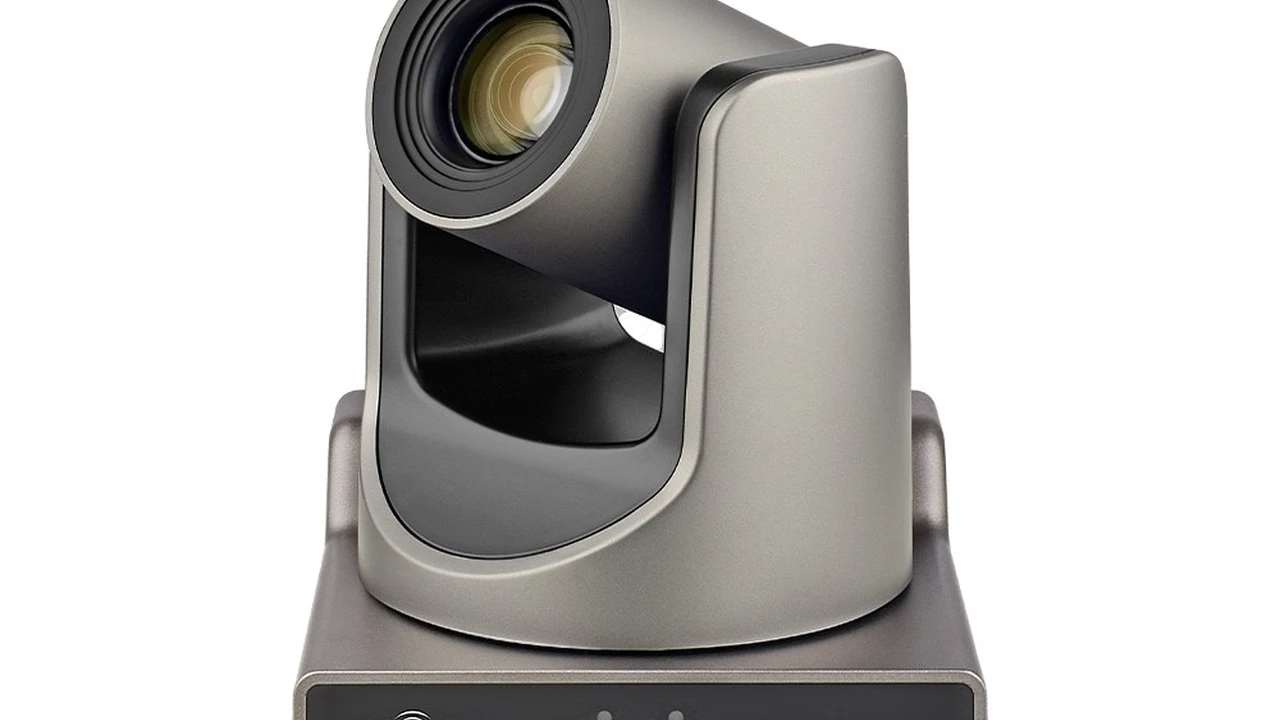
OBSBOT Tiny 2 AI-Powered PTZ Webcam The Smart Mover
Overview: The OBSBOT Tiny 2 is a unique AI-powered webcam that features pan, tilt, and zoom (PTZ) capabilities. It offers 4K resolution at 30fps and uses advanced AI tracking to automatically follow your movements, keeping you perfectly framed. It also includes gesture control, allowing you to start/stop tracking or zoom in/out with simple hand gestures. Its large 1/1.5-inch CMOS sensor ensures excellent image quality, even in challenging lighting. It has dual omnidirectional microphones.
Ideal Use Case: Presenters, educators, fitness instructors, or anyone who needs to move around during video calls and wants the camera to automatically keep them in frame. Great for dynamic presentations.
Pros: AI-powered auto-tracking and auto-framing, PTZ capabilities, gesture control, excellent 4K video quality, good low-light performance, innovative features.
Cons: Higher price, might be overkill for users who remain stationary, requires software for full functionality.
Approximate Price: $300 - $350 USD
Setting Up Your Webcam for Optimal Performance
Even the best webcam won't perform optimally if not set up correctly. Here are some tips to maximize your video quality:
Lighting is Key Position Yourself for Success
The most significant factor affecting your webcam's image quality is lighting. Ideally, you want soft, even light coming from in front of you. Avoid strong backlighting (like a window behind you) as it will make you appear as a silhouette. If natural light isn't sufficient, consider a ring light or a softbox. Even a desk lamp positioned correctly can make a big difference. Experiment with different light sources and positions to find what works best for your space.
Background Matters Keep it Professional and Tidy
Your background is part of your professional presentation. Keep it clean, uncluttered, and professional. Avoid distracting elements. If your physical background isn't ideal, consider using virtual backgrounds offered by most video conferencing platforms, but ensure they look natural and don't cause artifacts around your head.
Camera Angle Eye Level is Best
Position your webcam at eye level or slightly above. This creates a more natural and flattering angle, making it seem like you're making direct eye contact with your audience. Avoid placing the webcam too low, as it can create an unflattering 'up-the-nose' angle.
Internet Connection Stability is Crucial
Even with a 4K webcam, a poor internet connection will result in choppy, pixelated video. Ensure you have a stable and fast internet connection, especially if you're streaming at higher resolutions or frame rates. Using an Ethernet cable instead of Wi-Fi can often provide a more reliable connection.
Software and Drivers Keep Them Updated
Always ensure your webcam's drivers and any accompanying software are up to date. Manufacturers frequently release updates that improve performance, add features, or fix bugs. Check the manufacturer's website for the latest downloads.
Webcam Alternatives and When to Consider Them
While dedicated webcams offer convenience and specific features, there are other options to consider depending on your needs:
Using Your Smartphone as a Webcam The Quick Fix
Many apps (like Camo or DroidCam) allow you to use your smartphone's camera as a webcam. Modern smartphone cameras are often superior to many built-in laptop webcams, offering excellent image quality. This is a great temporary solution or for users who only occasionally need a high-quality video feed.
Mirrorless or DSLR Cameras as Webcams The Ultimate Quality
For the absolute best video quality, many professionals and content creators use their mirrorless or DSLR cameras as webcams. This requires a capture card (like Elgato Cam Link) and can be a more complex setup, but the image quality, depth of field, and low-light performance are unparalleled. This is ideal for those who already own such a camera and prioritize broadcast-quality video.
Laptop Built-in Webcams The Basic Option
Most laptops come with integrated webcams. While convenient, their quality often leaves much to be desired, especially in terms of resolution, low-light performance, and field of view. They are generally sufficient for casual calls but fall short for professional presentations where image quality is paramount.
Final Thoughts on Choosing Your Professional Webcam
Choosing the right webcam for professional video conferencing is an investment in your virtual presence. Consider your budget, your typical lighting conditions, whether you need to move during calls, and if you'll be presenting alone or with others. For most professionals, a 1080p webcam like the Logitech C920s offers excellent value and performance. If you frequently deal with challenging lighting or want the absolute best image quality, stepping up to a 4K model like the Logitech Brio or Razer Kiyo Pro is worthwhile. And for those seeking an all-in-one solution or advanced AI features, the AnkerWork B600 or OBSBOT Tiny 2 might be the perfect fit. By carefully evaluating your needs and the features discussed, you can select a webcam that truly enhances your professional image and makes your virtual interactions more impactful.
:max_bytes(150000):strip_icc()/277019-baked-pork-chops-with-cream-of-mushroom-soup-DDMFS-beauty-4x3-BG-7505-5762b731cf30447d9cbbbbbf387beafa.jpg)