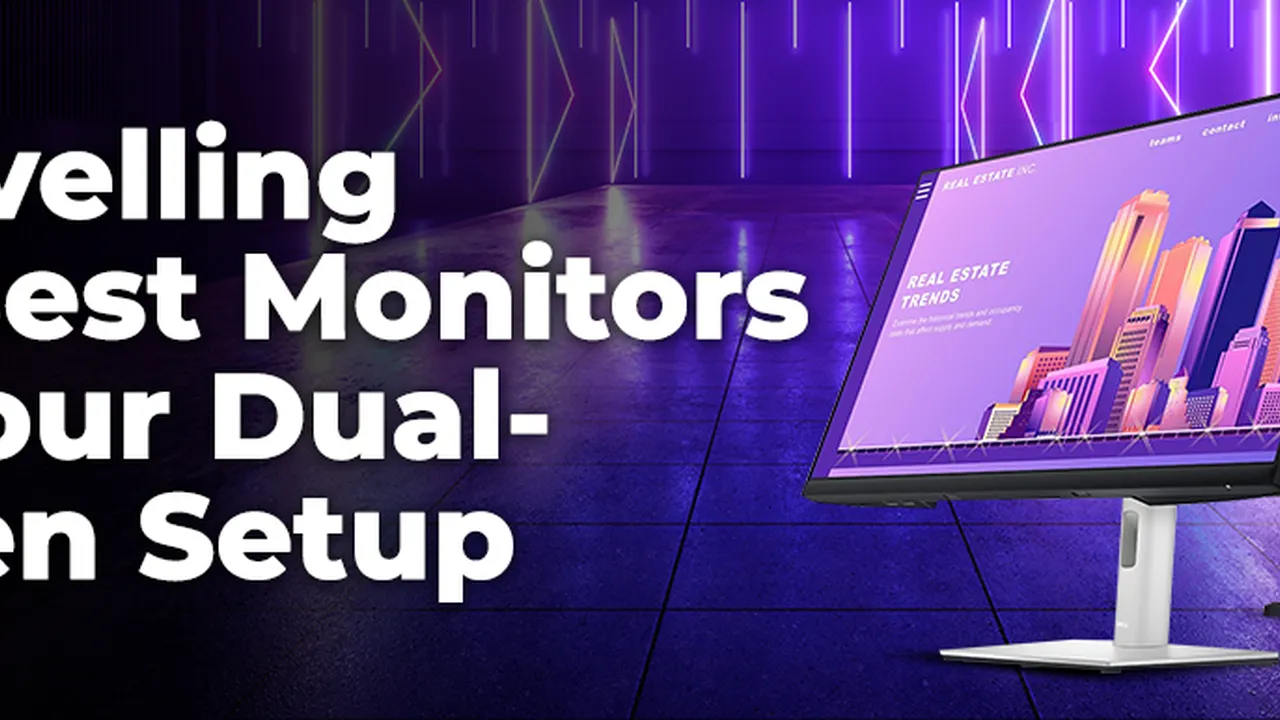
Decide between a single large monitor or a dual monitor setup for your workspace. Understand the pros and cons of each for productivity.
Monitors vs Dual Monitors Which Setup is Best
Hey there, productivity seekers! Ever found yourself staring at your screen, wishing you had more space to juggle all those tabs, documents, and applications? You're not alone. The eternal debate in the world of desk setups often boils down to this: should you go for one massive, glorious monitor, or spread your digital wings across two (or even more!) smaller screens? Both options have their champions, and both can seriously level up your workflow. But which one is truly the best fit for you, your tasks, and your wallet? Let's dive deep into the monitor maze and figure it out.
Single Monitor Setup The Focused Workstation
First up, let's talk about the single monitor setup. This is the classic, the default, the one most people start with. But don't mistake 'default' for 'limited.' A single, well-chosen monitor, especially a larger one, can be incredibly powerful. Think about those sleek, minimalist desk setups you see on Instagram – often, they feature one huge ultrawide or a high-resolution 4K display. The appeal here is simplicity and focus. With one screen, your attention isn't constantly darting between displays. It's all right there, in one cohesive visual field.
Advantages of a Single Large Monitor for Productivity
One of the biggest perks of a single large monitor is the seamless visual experience. No bezels breaking up your view, no awkward window snapping across different screens. This is particularly great for tasks that require a lot of horizontal space, like video editing timelines, large spreadsheets, or graphic design. Imagine editing a 4K video on a 34-inch ultrawide – it's a game-changer. You can see so much more of your project at once, reducing the need for constant scrolling and zooming. Plus, a single monitor often means less cable clutter, a cleaner desk, and a simpler setup process. It's also generally more budget-friendly to buy one high-quality large monitor than two equally high-quality smaller ones. And let's be honest, a massive monitor just looks impressive.
Disadvantages of a Single Monitor for Multitasking
However, a single monitor isn't without its drawbacks, especially if you're a heavy multitasker. While modern operating systems offer excellent window snapping features (like Windows Snap Assist or macOS Split View), they can only do so much. You're still limited by the physical boundaries of that one screen. If you're constantly switching between a dozen applications, copying and pasting data between multiple documents, or referencing information on one screen while working on another, a single monitor can feel restrictive. You'll find yourself constantly minimizing, maximizing, and rearranging windows, which can break your flow and waste precious time. It's like trying to cook a five-course meal on a single small cutting board – doable, but not ideal.
Dual Monitor Setup The Multitasking Powerhouse
Now, let's shift gears to the dual monitor setup. This is where many power users find their sweet spot. The idea is simple: two screens, twice the digital real estate. This setup is all about spreading out your workload, having multiple applications open and visible simultaneously, and reducing the need for constant alt-tabbing. It's the go-to for developers, data analysts, content creators, and anyone who lives and breathes in multiple applications at once.
Benefits of Dual Monitors for Enhanced Workflow
The primary advantage of dual monitors is the sheer amount of screen space. You can have your main work application on one screen (say, your word processor or coding IDE) and reference materials, communication apps, or research on the other. Imagine writing an article on one screen while having your research notes and a web browser open on the second. Or coding on one screen while debugging output and documentation are visible on the other. This significantly reduces context switching, which is a huge productivity killer. Studies have even shown that dual monitor setups can increase productivity by 20-50% for certain tasks. It feels more natural, more like working with physical documents spread across a large desk. Plus, if one monitor fails, you still have a backup!
Challenges and Considerations for Dual Monitor Setups
Of course, dual monitors come with their own set of challenges. First, there's the space requirement. You'll need a larger desk to comfortably accommodate two monitors, plus their stands or a monitor arm. Then there's the cable management – twice the monitors often means twice the cables, which can quickly turn into a tangled mess if you're not careful. Power, display, and potentially USB cables all need to be managed. You also need to consider your graphics card's capabilities; most modern GPUs can handle multiple displays, but it's worth checking if you're running an older system. Finally, there's the bezel in the middle. While modern monitors have thin bezels, there's still a visible line where the two screens meet, which can be distracting for some users, especially if you're trying to view a single, very wide application across both screens.
Key Factors to Consider When Choosing Your Setup
So, how do you make the call? It really boils down to a few key factors:
Your Primary Workload and Application Usage
What do you actually do on your computer? If your work primarily involves deep focus on one application at a time (e.g., writing, single-document editing, light browsing), a large single monitor might be perfect. If you're constantly juggling multiple applications, referencing data, or comparing documents side-by-side (e.g., programming, financial analysis, graphic design with multiple palettes), dual monitors will likely offer a significant productivity boost. Think about your typical day – how many windows do you usually have open and active at any given moment?
Available Desk Space and Ergonomics
Measure your desk! A single 34-inch ultrawide might fit where two 24-inch monitors won't. Also, consider ergonomics. With dual monitors, you need to ensure both are positioned at the correct height and distance to prevent neck strain. A good monitor arm can be a lifesaver here, allowing you to adjust both screens independently. For a single large monitor, ensure you're sitting far enough back to comfortably view the entire screen without excessive head movement.
Budget and Future Scalability
As mentioned, one large, high-quality monitor can sometimes be more expensive than two smaller, decent ones, but often less than two high-quality ones. Set a budget and see what options are available. Also, think about future needs. If you start with a single monitor, can you easily add a second one later if your workflow changes? If you start with two, can you upgrade one to a larger size down the line?
Personal Preference and Visual Comfort
This is a big one. Some people simply prefer the clean, unified look of a single screen. Others find the bezel in a dual monitor setup incredibly distracting. Conversely, some people feel claustrophobic on a single screen, no matter how large. Try to test out both setups if possible. Visit a friend's office, a tech store, or even just experiment with window management on your current screen to simulate the feeling of more space.
Recommended Monitor Setups and Specific Products
Alright, let's get to some concrete recommendations. Keep in mind that monitor technology is always evolving, so prices and availability can change. These are general guidelines and popular choices as of late 2023/early 2024.
For the Single Monitor Enthusiast (Large & Ultrawide Options)
If you're leaning towards a single, expansive display, here are some top picks:
-
Dell UltraSharp U4021QW (40-inch Ultrawide Curved Monitor)
- Use Case: Professional creative work (video editing, graphic design), data analysis, software development, immersive gaming.
- Why it's great: This monitor offers a massive 5120x2160 resolution, which is essentially a 5K display in an ultrawide format. It provides incredible screen real estate, excellent color accuracy, and a comfortable curve for an immersive experience. It also has Thunderbolt 3 connectivity, making it a great hub for laptops.
- Approx. Price: $1,500 - $2,000 USD
-
LG 32UN880-B UltraFine Display Ergo (32-inch 4K Monitor)
- Use Case: General productivity, content consumption, light photo/video editing, coding.
- Why it's great: This 4K monitor comes with an incredibly versatile ergonomic stand that clamps to your desk, freeing up space and allowing for extensive adjustments (height, swivel, tilt, pivot). The 32-inch size at 4K resolution offers crisp text and plenty of space for multiple windows.
- Approx. Price: $600 - $750 USD
-
Samsung Odyssey G9 (49-inch Super Ultrawide Curved Gaming Monitor)
- Use Case: Extreme multitasking, immersive simulation gaming, professional trading.
- Why it's great: This beast is like having two 27-inch 1440p monitors seamlessly joined. While primarily marketed for gaming due to its high refresh rate and low response time, its sheer size and resolution (5120x1440) make it a productivity powerhouse for those who need an absurd amount of horizontal space.
- Approx. Price: $1,000 - $1,400 USD
For the Dual Monitor Devotee (Pairing Options)
If you're ready to embrace the dual-screen life, here are some excellent monitors that work well in pairs:
-
Dell UltraSharp U2723QE (27-inch 4K Monitor) x 2
- Use Case: Professional office work, software development, graphic design, general productivity.
- Why it's great: Dell UltraSharps are known for their excellent build quality, color accuracy, and ergonomic stands. Two 27-inch 4K monitors give you an immense amount of pixel density and screen real estate. You can have four full-size documents open simultaneously across both screens without feeling cramped.
- Approx. Price: $550 - $700 USD per monitor (x2 for total)
-
HP E24 G5 (23.8-inch Full HD Monitor) x 2
- Use Case: Budget-friendly office work, administrative tasks, call centers, students.
- Why it's great: If you're on a tighter budget but still want the dual monitor advantage, these HP monitors offer solid performance for the price. Full HD (1920x1080) is perfectly adequate for most office tasks, and their thin bezels make for a relatively seamless dual-screen experience. They also come with decent ergonomic stands.
- Approx. Price: $200 - $250 USD per monitor (x2 for total)
-
LG 27QN600-B (27-inch QHD Monitor) x 2
- Use Case: Mid-range productivity, casual gaming, content creation.
- Why it's great: QHD (2560x1440) resolution on a 27-inch screen is often considered the sweet spot for many users, offering a good balance of sharpness and screen space without requiring as much GPU power as 4K. These LG monitors provide good color reproduction and viewing angles, making them a versatile choice for a dual setup.
- Approx. Price: $250 - $350 USD per monitor (x2 for total)
Setting Up Your Monitors for Optimal Productivity
Once you've decided on your setup, getting it right is crucial. For single large monitors, ensure it's centered directly in front of you, with the top of the screen at or slightly below eye level. For ultrawides, you might need to sit a bit further back to take in the whole view comfortably.
For dual monitors, the most common setup is side-by-side. Position your primary monitor directly in front of you, and the secondary monitor to its immediate left or right, angled slightly towards you. Ensure their heights are matched. If you're using a monitor arm, you'll have even more flexibility to fine-tune their positions. Some users prefer one monitor in landscape and one in portrait mode, especially for coding or reading long documents. Experiment to find what feels most natural and efficient for your specific tasks.
Don't forget about software tools! Windows has Snap Assist, and macOS has Split View, but third-party utilities like FancyZones (part of Microsoft PowerToys) or Magnet (for macOS) can offer even more advanced window management capabilities, allowing you to create custom layouts and snap windows precisely where you want them. These tools are incredibly useful for maximizing the efficiency of both single large monitors and dual monitor setups.
The Verdict It's All About You
Ultimately, there's no single 'best' setup that fits everyone. The choice between a single large monitor and a dual monitor setup is deeply personal and depends on your specific needs, workflow, and even your physical workspace. If you value simplicity, a clean aesthetic, and deep focus on one primary task, a high-quality large or ultrawide monitor might be your ideal. If your work demands constant multitasking, side-by-side comparisons, and seamless switching between multiple applications, then a dual monitor setup will likely be a game-changer for your productivity. Take the time to assess your habits, consider your budget, and perhaps even try out both configurations if you have the opportunity. Whichever path you choose, investing in a good monitor setup is one of the most impactful upgrades you can make to your daily computing experience.
:max_bytes(150000):strip_icc()/277019-baked-pork-chops-with-cream-of-mushroom-soup-DDMFS-beauty-4x3-BG-7505-5762b731cf30447d9cbbbbbf387beafa.jpg)