The Best Document Scanners for Paperless Workflow
Hey there! Are you tired of drowning in a sea of paper? Receipts, invoices, contracts, old photos – they pile up, take up space, and make finding anything a nightmare. Well, what if I told you there's a super effective way to ditch the paper clutter and embrace a sleek, digital workflow? That's right, we're talking about document scanners. These aren't your grandma's flatbed scanners; modern document scanners are fast, efficient, and packed with features designed to get you paperless in no time. Let's dive into why you need one and which ones are leading the pack.
Why Go Paperless with Document Scanners? Benefits and Efficiency
First off, why bother going paperless? Beyond the obvious benefit of a tidier desk, there are tons of advantages. Imagine being able to find any document you need in seconds with a quick search on your computer. No more rummaging through dusty filing cabinets! Digitizing your documents also means they're safer from physical damage like floods or fires. Plus, sharing documents becomes a breeze – just email a PDF instead of making copies. For businesses, this translates to increased efficiency, reduced storage costs, and better data security. For personal use, it means less stress and more space. Document scanners are the key to unlocking this digital freedom.
Key Features to Look for in Document Scanners Speed, ADF, and Software
When you're shopping for a document scanner, it's easy to get overwhelmed by the options. But don't sweat it, I'll break down the most important features to consider:
Scanning Speed Pages Per Minute PPM
This is a big one, especially if you have a lot of documents to scan. Scanning speed is usually measured in pages per minute (PPM). For occasional home use, 10-20 PPM might be fine. But if you're tackling years of paperwork or running a small business, you'll want something much faster, like 30-60 PPM or even higher. Remember, faster scanning means less time spent feeding paper and more time doing… well, anything else!
Automatic Document Feeder ADF Capacity
An Automatic Document Feeder (ADF) is a game-changer. Instead of placing each page individually, you load a stack of documents into the ADF, and the scanner pulls them through one by one. The ADF capacity tells you how many pages it can hold at once. A larger ADF (e.g., 50-100 sheets) means you can scan bigger batches without constant supervision. This is crucial for productivity.
Duplex Scanning Double Sided Efficiency
Many documents are printed on both sides. A duplex scanner can scan both sides of a page simultaneously, effectively doubling your scanning speed and saving you a ton of time. If you deal with a lot of two-sided documents, this feature is a must-have.
Image Quality and Resolution DPI
Resolution is measured in dots per inch (DPI). For most text documents, 200-300 DPI is perfectly adequate for clear, searchable PDFs. If you're scanning photos or documents with fine details, you might want a higher resolution like 600 DPI. Keep in mind that higher DPI means larger file sizes.
Software Features OCR and Document Management
The software that comes with your scanner is almost as important as the hardware itself. Look for Optical Character Recognition (OCR) capabilities. OCR transforms scanned images of text into searchable and editable text. This means you can search for keywords within your scanned PDFs, copy text, and even edit documents. Good software will also offer features like automatic blank page removal, de-skewing (straightening crooked scans), color detection, and integration with cloud services like Dropbox, Google Drive, or Evernote.
Connectivity Options USB WiFi and Network
Most scanners connect via USB. Some higher-end models offer Wi-Fi connectivity, allowing you to place the scanner anywhere and scan from multiple devices without cables. Network scanners are great for shared office environments.
Top Document Scanners for Home and Small Business Use Cases and Comparisons
Alright, let's get to the good stuff – specific recommendations! I've picked out some of the best document scanners on the market, catering to different needs and budgets.
1. Fujitsu ScanSnap iX1600 The All Rounder
Use Case: This is a fantastic choice for both home users with significant scanning needs and small businesses. It's incredibly user-friendly and powerful.
Features: The iX1600 boasts impressive speed at 40 PPM (pages per minute) for both color and monochrome documents, and it does duplex scanning in a single pass. It has a 50-sheet ADF, which is great for batch scanning. What really sets it apart is its intuitive 4.3-inch touchscreen, allowing you to scan directly to various destinations (folders, email, cloud services like Dropbox, Google Drive, Evernote, OneDrive, etc.) without needing a computer. Its software, ScanSnap Home, is excellent for organizing, searching, and editing your scanned documents with robust OCR. It also handles mixed batches of documents, from thin receipts to thick cards, without a hitch.
Pros: Super fast, excellent software, easy to use touchscreen, reliable paper handling, Wi-Fi connectivity.
Cons: A bit pricey for casual users, no TWAIN/ISIS drivers (which might be an issue for some niche business applications, but not for general use).
Estimated Price: Around $450 - $500 USD
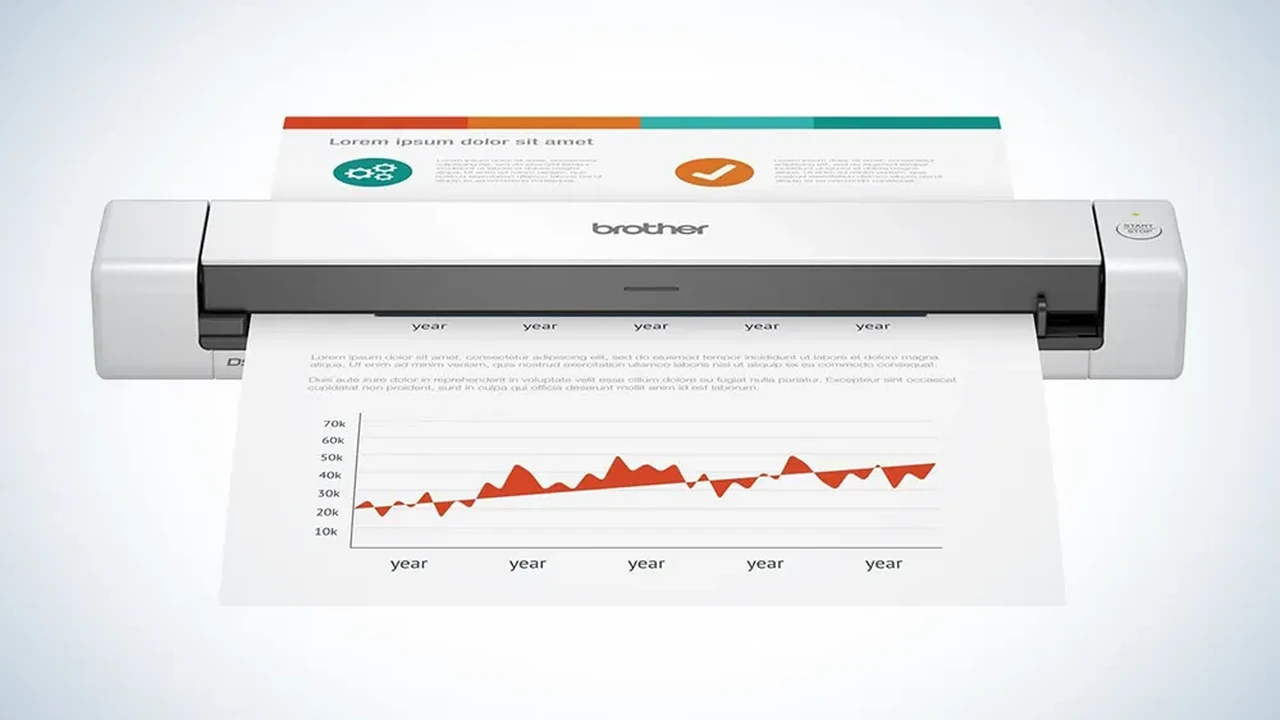
2. Brother ADS-2700W The Network Friendly Option
Use Case: Ideal for small offices or home offices where multiple users might need to access the scanner, or for those who prefer network connectivity over USB.
Features: The ADS-2700W offers a solid scanning speed of 35 PPM (duplex scanning at 70 ipm - images per minute) and a 50-sheet ADF. Its standout feature is its versatile connectivity: USB, Ethernet, and Wi-Fi. This means you can place it anywhere on your network and scan from any connected device. It also has a 2.8-inch color touchscreen for direct scanning to various destinations, including cloud services and USB flash drives. The included software provides good OCR and document management tools. It's known for its robust build quality and reliable performance.
Pros: Excellent connectivity options (Wi-Fi, Ethernet), good speed and ADF capacity, reliable, touchscreen for direct scanning.
Cons: Software might not be as polished as Fujitsu's, slightly larger footprint than some compact models.
Estimated Price: Around $350 - $400 USD
3. Epson WorkForce ES-500W II The Value Performer
Use Case: A great choice for home users or small businesses looking for a fast, reliable, and feature-rich scanner without breaking the bank. It offers excellent value.
Features: The ES-500W II delivers a speedy 35 PPM (70 ipm duplex) and comes with a generous 50-sheet ADF. It supports both USB and Wi-Fi connectivity, making it flexible for various setups. Epson's ScanSmart software is user-friendly and includes powerful OCR, allowing you to create searchable PDFs and save to cloud services. It also has features like automatic feeding mode, which detects when a document is placed and starts scanning automatically. It handles a wide range of document types, from business cards to long documents.
Pros: Great speed for the price, good ADF capacity, Wi-Fi connectivity, user-friendly software, reliable paper handling.
Cons: Build quality feels a bit less premium than Fujitsu, some users report occasional paper jams with very thin or very thick paper (though generally reliable).
Estimated Price: Around $300 - $350 USD
4. Raven Pro Document Scanner The Cloud Centric Choice
Use Case: Perfect for users who want a truly standalone scanner that can send documents directly to cloud services without needing a computer, or for those who prioritize a large touchscreen experience.
Features: The Raven Pro is a powerhouse, scanning at an impressive 60 PPM (120 ipm duplex) with a massive 100-sheet ADF. Its standout feature is its large 8-inch touchscreen, which allows for extensive on-device control, including direct scanning to a wide array of cloud services (Google Drive, Dropbox, Evernote, OneDrive, SharePoint, Box, etc.) and even email, all without a computer. It has built-in OCR and offers unlimited cloud storage for your scans with a Raven Cloud account. It connects via Wi-Fi and Ethernet.
Pros: Extremely fast, huge ADF, large intuitive touchscreen, extensive cloud integration, no computer needed for many functions, unlimited cloud storage.
Cons: It's the most expensive option on this list, some advanced features might require a subscription to Raven Cloud (though basic cloud integration is free).
Estimated Price: Around $600 - $650 USD
5. Canon imageFORMULA R40 The Budget Friendly Workhorse
Use Case: An excellent entry-level option for home users or very small businesses who need a reliable document scanner for occasional to moderate use, without a huge upfront investment.
Features: The R40 offers a respectable scanning speed of 40 PPM (80 ipm duplex) and a 60-sheet ADF, which is quite good for its price point. It connects via USB only, so no Wi-Fi here. It comes with Canon CaptureOnTouch software, which provides good OCR capabilities and allows you to save to various file formats and cloud services. It's known for its compact design and reliable paper feeding, even with mixed document types. It's a straightforward, no-frills scanner that gets the job done efficiently.
Pros: Great speed and ADF capacity for the price, reliable paper handling, compact design, good software included.
Cons: No Wi-Fi or network connectivity, lacks a touchscreen for direct scanning, software interface is a bit basic compared to higher-end models.
Estimated Price: Around $280 - $320 USD
Setting Up Your Paperless Workflow Tips and Best Practices
Getting a scanner is just the first step. To truly go paperless, you need a system. Here are some tips:
Organize Your Digital Files Folder Structure and Naming Conventions
Before you start scanning, decide on a logical folder structure. For example: 'Documents' -> 'Personal' -> 'Taxes' -> '2023' or 'Business' -> 'Clients' -> 'Client Name'. Use consistent naming conventions for your files (e.g., '2023-01-15_UtilityBill_Electricity.pdf'). This makes finding documents much easier.
Backup Your Scans Cloud Storage and External Drives
Digital documents are great, but only if they're safe. Always back up your scanned files. Use cloud storage services (Dropbox, Google Drive, OneDrive) for easy access and off-site backup. Also, consider an external hard drive for a local backup copy.
Shredding Physical Documents Secure Disposal
Once you've scanned and backed up a document, shred the physical copy. Don't just toss it in the trash, especially if it contains sensitive information. A cross-cut shredder is your best friend here.
Batch Scanning and Automation Maximize Efficiency
Utilize your scanner's ADF and duplex scanning capabilities to scan large batches of documents at once. Many scanner software packages allow you to set up profiles for different types of scans (e.g., 'Receipts', 'Contracts'), which can automate settings like resolution, file type, and destination folder.
Regular Maintenance Cleaning Your Scanner
Scanners, especially their rollers and glass, can get dusty or dirty, leading to streaks on your scans. Refer to your scanner's manual for cleaning instructions. Regular cleaning ensures optimal performance and image quality.
Common Questions About Document Scanners and Paperless Living FAQs
Can I scan photos with a document scanner?
Yes, you can, but dedicated photo scanners or flatbed scanners often provide better image quality for photos, especially if you're looking for archival quality. Document scanners are optimized for speed and text documents, so while they'll scan photos, the results might not be as vibrant or detailed as a specialized photo scanner.
What's the difference between a document scanner and a multi-function printer MFP?
MFPs (all-in-one printers) have scanning capabilities, but they are generally much slower, have smaller ADFs (if any), and their software is less robust for document management. A dedicated document scanner is built for speed, efficiency, and high-volume scanning, making it far superior for going paperless.
How long should I keep physical copies after scanning?
This depends on the document type and your comfort level. For most personal documents (receipts, utility bills), once scanned and backed up, you can shred the physical copy immediately. For important legal or financial documents (tax returns, birth certificates, property deeds), it's often recommended to keep the physical originals for a certain period or indefinitely, even after scanning. Always check with a legal or financial advisor if you're unsure.
Is OCR always accurate?
OCR technology has come a long way, but it's not 100% perfect, especially with handwritten documents, very old documents, or documents with unusual fonts. For most printed documents, it's highly accurate. Always review your scanned documents, especially if they're critical, to ensure the OCR has correctly interpreted the text.
Can I scan directly to my phone or tablet?
Many Wi-Fi enabled document scanners, like the Fujitsu ScanSnap iX1600 or Epson ES-500W II, have companion mobile apps that allow you to scan directly to your smartphone or tablet. This is super convenient for on-the-go access to your digital files.
So there you have it! Ditching paper doesn't have to be a daunting task. With the right document scanner and a little bit of organization, you can transform your cluttered desk into a streamlined, efficient digital workspace. Happy scanning!
:max_bytes(150000):strip_icc()/277019-baked-pork-chops-with-cream-of-mushroom-soup-DDMFS-beauty-4x3-BG-7505-5762b731cf30447d9cbbbbbf387beafa.jpg)