Top USB Hubs and Docks for Connectivity
In today's increasingly digital world, our reliance on electronic devices is undeniable. From laptops and tablets to smartphones and external hard drives, we're constantly juggling multiple gadgets. The problem? Many modern devices, especially sleek laptops, come with a limited number of ports. This often leaves us in a frustrating situation: do I plug in my external monitor or my keyboard? My mouse or my USB drive? This is where USB hubs and docking stations become indispensable tools, transforming a single port into a multi-functional connectivity powerhouse. They are the unsung heroes of productivity, allowing you to connect all your peripherals, charge your devices, and even extend your display, all through one convenient connection.
Why You Need a USB Hub or Docking Station for Enhanced Connectivity
The shift towards thinner, lighter laptops has come at a cost: fewer built-in ports. While this design choice makes devices more portable, it often sacrifices functionality. A USB hub or docking station effectively solves this problem by expanding your connectivity options. Imagine being able to connect your external monitor, keyboard, mouse, printer, and an external hard drive to your laptop simultaneously, all while keeping your workspace tidy. This level of connectivity is crucial for anyone who uses multiple peripherals, whether you're a remote worker, a content creator, a gamer, or just someone who wants a more organized desk setup.
Beyond simply adding more ports, these devices offer a range of benefits. They can provide faster data transfer speeds, power delivery to charge your laptop, and even Ethernet ports for a more stable internet connection. For professionals, a docking station can transform a portable laptop into a powerful desktop workstation, allowing for seamless transitions between working on the go and at your desk. For casual users, a simple USB hub can eliminate the constant plugging and unplugging of devices, making your digital life much smoother.
Understanding USB Hubs and Docking Stations Key Differences and Features
While often used interchangeably, USB hubs and docking stations serve slightly different purposes and offer varying levels of functionality. Understanding these differences is key to choosing the right device for your needs.
USB Hubs Simple Port Expansion for Everyday Use
USB hubs are generally simpler devices designed to expand the number of USB ports available. They typically connect to a single USB port on your computer and provide multiple downstream USB ports (e.g., USB-A, USB-C). They are ideal for connecting multiple low-power peripherals like keyboards, mice, USB drives, and webcams. Some hubs are 'bus-powered,' meaning they draw power directly from your computer's USB port, while 'self-powered' hubs have their own power adapter, which is necessary for connecting power-hungry devices like external hard drives or for charging multiple devices simultaneously.
Key Features of USB Hubs:
- Number of Ports: Typically 3 to 7 USB ports.
- USB Standard: USB 2.0, USB 3.0 (USB 3.2 Gen 1), USB 3.1 (USB 3.2 Gen 2), or USB 3.2 (USB 3.2 Gen 2x2). Higher numbers mean faster data transfer.
- Power Delivery: Bus-powered (draws power from host) or self-powered (requires external power adapter).
- Port Types: Primarily USB-A and/or USB-C.
- Portability: Generally compact and lightweight, making them easy to carry.
Docking Stations Comprehensive Connectivity Solutions for Workstations
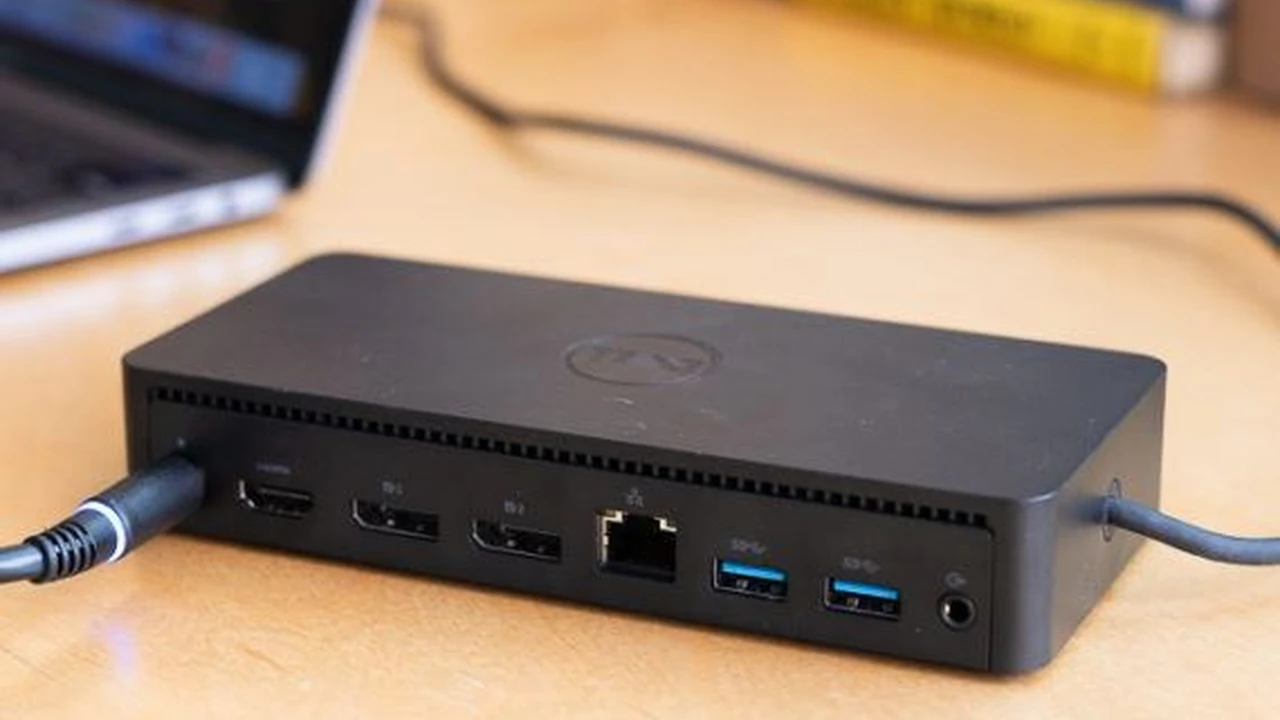
Docking stations are more robust and feature-rich devices designed to provide a comprehensive connectivity solution, often transforming a laptop into a full-fledged desktop workstation. They typically connect to your laptop via a single USB-C (Thunderbolt 3 or 4) cable and offer a wider array of ports, including multiple display outputs (HDMI, DisplayPort), Ethernet, multiple USB-A and USB-C ports, SD card readers, and even audio jacks. Many docking stations also offer Power Delivery (PD), meaning they can charge your laptop through the same cable that handles data and video, reducing cable clutter.
Key Features of Docking Stations:
- Extensive Port Selection: USB-A, USB-C, HDMI, DisplayPort, Ethernet, SD/microSD card slots, audio jacks.
- Video Output: Support for single, dual, or even triple external monitors, often at high resolutions (4K, 5K).
- Power Delivery (PD): Can charge your laptop (up to 100W or more) while connected.
- Ethernet Port: Provides a stable wired internet connection, often faster than Wi-Fi.
- Advanced Connectivity: Often utilize Thunderbolt 3 or 4 for higher bandwidth and performance.
- Form Factor: Can range from compact travel docks to larger desktop units.
Top USB Hubs and Docking Stations Recommended Products and Use Cases
Let's dive into some of the best USB hubs and docking stations available on the market, highlighting their features, ideal use cases, and approximate pricing.
Best USB-C Hubs for Modern Laptops and Portability
Anker PowerExpand+ 7-in-1 USB-C Hub
Description: This is a highly popular and reliable USB-C hub, perfect for users who need a good balance of portability and functionality. It's compact enough to throw in your bag but offers a solid array of ports.
Key Features:
- 1 x HDMI port (supports 4K@30Hz)
- 2 x USB-A 3.0 ports (5Gbps)
- 1 x USB-C Power Delivery input (up to 85W pass-through charging)
- 1 x microSD card slot
- 1 x SD card slot
- 1 x Ethernet port (Gigabit)
Ideal Use Case: Everyday use for MacBook and USB-C laptop users who need to connect an external monitor, a couple of USB peripherals, and an SD card, plus a wired internet connection. Great for travel or a minimalist desk setup.
Approximate Price: $30 - $50
UGREEN USB C Hub 6-in-1
Description: UGREEN is known for its quality accessories, and this 6-in-1 hub is no exception. It's a great budget-friendly option that still delivers essential connectivity.
Key Features:
- 1 x HDMI port (supports 4K@30Hz)
- 3 x USB-A 3.0 ports (5Gbps)
- 1 x USB-C Power Delivery input (up to 100W pass-through charging)
- 1 x Ethernet port (Gigabit)
Ideal Use Case: Users looking for a cost-effective solution to expand their USB-C laptop's connectivity for basic office tasks, presentations, or home use. The 100W PD is a nice bonus for faster charging.
Approximate Price: $25 - $40
Best USB-A Hubs for Older Laptops and Desktop PCs
Anker 4-Port USB 3.0 Ultra Slim Data Hub
Description: For those with older laptops or desktop PCs that primarily use USB-A ports, this simple and ultra-slim hub from Anker is a fantastic choice. It's bus-powered and incredibly portable.
Key Features:
- 4 x USB-A 3.0 ports (5Gbps)
Ideal Use Case: Expanding the number of USB-A ports on a desktop PC or an older laptop. Perfect for connecting multiple low-power devices like mice, keyboards, flash drives, or charging small gadgets. Its slim design makes it great for travel too.
Approximate Price: $10 - $20
Sabrent 4-Port USB 3.0 Hub with Individual Power Switches
Description: This hub offers the convenience of individual power switches for each port, allowing you to turn off devices when not in use, which can be handy for power management or troubleshooting.
Key Features:
- 4 x USB-A 3.0 ports (5Gbps)
- Individual On/Off switches for each port
- Optional 5V/2.5A power adapter port (adapter sold separately for self-powered use)
Ideal Use Case: Desktop users who want more control over their connected USB devices. Useful for external hard drives (with optional power adapter), USB microphones, or other peripherals that you don't always need powered on.
Approximate Price: $15 - $25
Best Docking Stations for Professional Workstations and Dual Monitors
CalDigit TS4 Thunderbolt 4 Dock
Description: The CalDigit TS4 is a premium, high-performance Thunderbolt 4 docking station, often considered the gold standard for Mac and high-end Windows laptop users. It offers an unparalleled array of ports and robust power delivery.
Key Features:
- 3 x Thunderbolt 4 ports (40Gbps)
- 3 x USB-C (10Gbps)
- 5 x USB-A (10Gbps)
- 1 x DisplayPort 1.4 (supports up to 8K@60Hz or dual 4K@60Hz)
- 1 x 2.5 Gigabit Ethernet
- SD 4.0 (UHS-II) and microSD 4.0 (UHS-II) card slots
- Front Combo Audio Jack, Rear Audio In/Out
- Up to 98W Power Delivery to host laptop
Ideal Use Case: Professionals, content creators, and power users who need maximum connectivity, multiple high-resolution external displays, and fast data transfer speeds. Perfect for a permanent desk setup where you connect many peripherals and need to charge your laptop.
Approximate Price: $350 - $400
Dell WD19S 180W Docking Station
Description: A popular choice in corporate environments, the Dell WD19S is a reliable and versatile USB-C docking station designed for Dell laptops but compatible with many other USB-C devices. It offers excellent power delivery and dual display support.
Key Features:
- 2 x DisplayPort 1.4
- 1 x HDMI 2.0b
- 1 x USB-C 3.1 Gen 2
- 3 x USB-A 3.1 Gen 1
- 1 x Gigabit Ethernet
- Power Delivery up to 130W (for Dell laptops) or 90W (for non-Dell laptops)
Ideal Use Case: Office workers, IT professionals, and anyone needing a robust docking solution for dual monitors and a stable wired network connection. Great for hot-desking environments or a dedicated home office setup.
Approximate Price: $200 - $250
Plugable USB-C Dual 4K DisplayPort and HDMI Docking Station (UD-ULTC4K)
Description: Plugable offers a wide range of reliable docking stations, and this model is excellent for users who need dual 4K display support via both DisplayPort and HDMI, offering flexibility for various monitor setups.
Key Features:
- 2 x HDMI 2.0 (supports dual 4K@60Hz)
- 2 x DisplayPort 1.2 (supports dual 4K@60Hz)
- 1 x USB-C 3.0 (5Gbps)
- 4 x USB-A 3.0 (5Gbps)
- 1 x Gigabit Ethernet
- Audio input/output
- Up to 60W Power Delivery to host laptop
Ideal Use Case: Users with multiple 4K monitors who need a versatile docking station that supports both HDMI and DisplayPort connections. Good for graphic designers, video editors, or anyone who benefits from extensive screen real estate.
Approximate Price: $150 - $200
Best Travel Docks and Portable Hubs for On-the-Go Productivity
HyperDrive 6-in-1 USB-C Hub for iPad Pro/Air
Description: Specifically designed for iPad Pro and iPad Air, this hub attaches directly to the side of the tablet, offering a seamless extension of its capabilities. It's incredibly portable and integrates well with Apple's design.
Key Features:
- 1 x HDMI (4K@60Hz)
- 1 x USB-C Power Delivery (up to 60W)
- 1 x USB-A 3.0
- 1 x 3.5mm Audio Jack
- 1 x SD card slot
- 1 x microSD card slot
Ideal Use Case: iPad Pro/Air users who want to connect an external display, transfer photos from an SD card, use a USB-A peripheral, and charge their iPad simultaneously. Perfect for presentations, photo editing on the go, or turning your iPad into a more capable workstation.
Approximate Price: $70 - $90
Satechi Slim Aluminum Type-C Multi-Port Adapter V2
Description: Satechi is known for its sleek, Apple-matching designs. This slim adapter is a great travel companion, offering essential ports in a compact form factor.
Key Features:
- 1 x HDMI (4K@30Hz)
- 1 x USB-C Power Delivery (up to 60W)
- 2 x USB-A 3.0
- 1 x SD card slot
- 1 x microSD card slot
Ideal Use Case: MacBook and USB-C laptop users who travel frequently and need a lightweight, compact hub for basic connectivity like connecting to a projector, external drive, or camera's SD card.
Approximate Price: $60 - $80
Factors to Consider When Choosing Your Connectivity Solution
With so many options available, selecting the right USB hub or docking station can feel overwhelming. Here are the key factors to consider to ensure you make the best choice for your specific needs:
Compatibility with Your Devices and Operating System
First and foremost, ensure the hub or dock is compatible with your laptop or device. Check the type of port your device has (USB-A, USB-C, Thunderbolt 3/4). While USB-C is becoming standard, not all USB-C ports are created equal. Some only support data, while others support video (DisplayPort Alt Mode) and Power Delivery. Thunderbolt 3 and 4 ports offer the highest bandwidth and versatility, making them ideal for high-performance docking stations.
Also, consider your operating system. Most hubs and docks are plug-and-play with Windows, macOS, and Chrome OS, but it's always good to double-check, especially for advanced features like multiple external displays.
Required Ports and Connectivity Options
Make a list of all the peripherals you regularly use or plan to use. Do you need multiple USB-A ports for a mouse, keyboard, and external hard drive? Do you need an HDMI or DisplayPort for an external monitor (or two)? Is a wired Ethernet connection important for stable internet? Do you frequently transfer photos from an SD card? Prioritizing your port needs will narrow down your options significantly.
Power Delivery and Charging Capabilities
If you want the hub or dock to charge your laptop, ensure it supports Power Delivery (PD) and provides enough wattage for your device. Laptops typically require 45W to 100W or more. A dock with sufficient PD means you only need one cable connecting to your laptop for data, video, and power, significantly reducing cable clutter.
Video Output and Display Support
For external monitors, check the number of display outputs (HDMI, DisplayPort, VGA) and the maximum resolution and refresh rate they support. If you need dual 4K monitors at 60Hz, you'll need a more capable docking station, likely one with Thunderbolt connectivity. If you only need a single 1080p monitor, a simpler USB-C hub might suffice.
Data Transfer Speeds USB Standards and Thunderbolt
USB standards dictate data transfer speeds. USB 2.0 is slow (480Mbps), USB 3.0 (now USB 3.2 Gen 1) is 5Gbps, USB 3.1 (now USB 3.2 Gen 2) is 10Gbps, and USB 3.2 Gen 2x2 is 20Gbps. Thunderbolt 3 and 4 offer the fastest speeds at 40Gbps. If you frequently transfer large files (e.g., video editing, large backups), investing in a hub or dock with faster USB standards or Thunderbolt will save you a lot of time.
Portability vs Desktop Setup
Consider where and how you'll be using the device. If you're constantly on the go, a compact, bus-powered USB-C hub is ideal. If you're setting up a permanent workstation at home or in the office, a larger, self-powered docking station with more ports and robust power delivery will be more suitable.
Brand Reputation and Build Quality
Stick to reputable brands like Anker, CalDigit, Dell, Plugable, UGREEN, Satechi, and HyperDrive. These brands are known for their quality, reliability, and customer support. Read reviews to get an idea of real-world performance and durability.
Price and Value for Money
USB hubs can range from $10 to $50, while docking stations can cost anywhere from $100 to $400+. Determine your budget, but remember that investing in a higher-quality, more feature-rich device can save you headaches and provide better long-term value, especially if it means you don't have to upgrade again soon.
Tips for Optimizing Your Connectivity Setup
Once you've chosen your USB hub or docking station, here are some tips to get the most out of it and maintain an efficient workspace:
Cable Management for a Tidy Workspace
Even with a single-cable connection to your laptop, you'll still have multiple cables running from your peripherals to the hub/dock. Invest in some cable ties, Velcro straps, or cable management sleeves to keep everything neat and tidy. A clean workspace can significantly improve productivity and reduce stress.
Firmware Updates for Optimal Performance
Some docking stations, especially more advanced ones, may require firmware updates. Check the manufacturer's website periodically for any available updates. These updates can improve compatibility, fix bugs, and enhance performance.
Power Considerations for High-Demand Devices
If you're connecting power-hungry devices like external hard drives or multiple high-resolution monitors, ensure your hub or dock is self-powered (has its own power adapter) or provides sufficient Power Delivery. Bus-powered hubs might not provide enough juice for all your devices, leading to instability or poor performance.
Troubleshooting Common Connectivity Issues
If you encounter issues, here are some quick troubleshooting steps:
- Restart Everything: A simple restart of your laptop and the hub/dock can often resolve minor glitches.
- Check Cables: Ensure all cables are securely connected and not damaged. Try a different cable if possible.
- Update Drivers: For some docking stations, especially on Windows, you might need specific drivers. Check the manufacturer's website.
- Test Individual Components: If a specific peripheral isn't working, try connecting it directly to your laptop or to a different port on the hub/dock to isolate the problem.
- Reduce Load: If you're experiencing intermittent issues, try disconnecting some devices to see if it's a power or bandwidth limitation.
The Future of Connectivity USB4 and Beyond
The world of connectivity is constantly evolving. USB4, based on the Thunderbolt 3 protocol, is becoming more prevalent, offering 40Gbps speeds, dynamic bandwidth allocation, and improved compatibility. Thunderbolt 4 builds on this, ensuring consistent performance and universal compatibility across devices. As technology advances, we can expect even faster speeds, more efficient power delivery, and potentially new wireless docking solutions that further reduce cable clutter.
These advancements mean that USB hubs and docking stations will continue to be essential tools for maximizing productivity and convenience in our increasingly connected lives. Whether you're a minimalist looking to expand a single port or a power user building a multi-monitor workstation, there's a perfect connectivity solution out there for you.
:max_bytes(150000):strip_icc()/277019-baked-pork-chops-with-cream-of-mushroom-soup-DDMFS-beauty-4x3-BG-7505-5762b731cf30447d9cbbbbbf387beafa.jpg)